Find your starting point
Adobe Acrobat: AI Tools, Document Security and Accessibility covers AI summaries, sensitive-data removal, document controls and accessible PDFs, with one assignment listed. Copilot in Word: Create and Refine Documents with AI is about drafting from sources, revising tone, adding tables and summarizing in Word. It is for editable documents rather than PDF redaction.
AI Research, Files & Productivity with ChatGPT and Claude covers file analysis, research, checking outputs, projects and cloud-drive connections. It can help with questions about a file. Adobe Acrobat is the course in this group for PDF redaction and accessibility. Course access and software licences are separate unless included by the provider.
Try a public or fictional document with a known answer. Check the result and the exported file. Text that looks hidden in an editor may still be present underneath. Confirm retention, sharing and account rules before using real work documents.
A better first draft
- 01Start with
A brief or an existing document
- 02Make a first pass
A draft, summary or revision
- 03Make it yours
Check the facts and tone
Use a fictional example to practise the workflow.
Compare the courses
| Course | What you’ll do | Time | Cost and access |
|---|---|---|---|
| Adobe Acrobat: AI Tools, Document Security and AccessibilityAdobe |
|
|
|
| Copilot in Word: Create and Refine Documents with AILinkedIn Learning |
|
| See course page for pricing. |
| AI Research, Files & Productivity with ChatGPT and ClaudeSawan Kumar |
|
|
|
Take a closer look
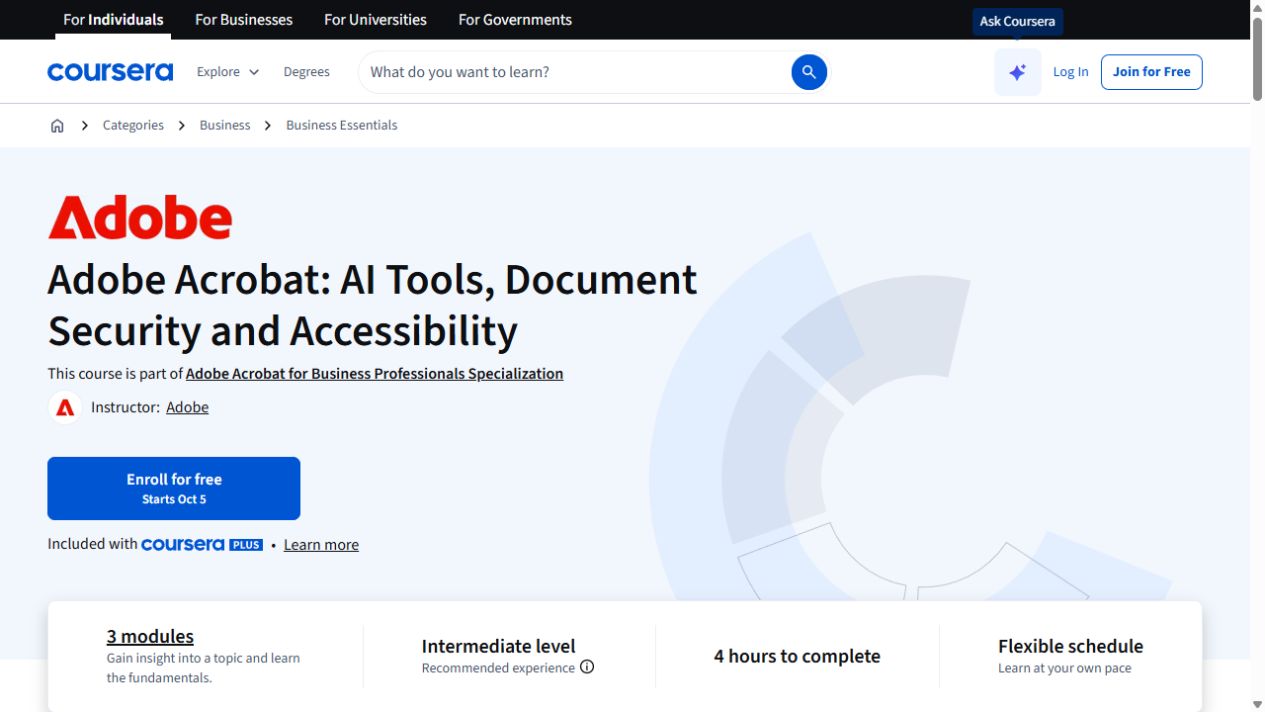
Adobe Acrobat: AI Tools, Document Security and Accessibility
Use Acrobat’s AI tools to summarize PDFs, protect sensitive details and make documents more accessible.
Copilot in Word: Create and Refine Documents with AI
Use Copilot in Word to draft from sources, revise tone, add tables and summarize documents.
AI Research, Files & Productivity with ChatGPT and Claude
Use ChatGPT and Claude to analyze files, research topics and check outputs, then organize work with memory, projects and cloud-drive connections.
Try this before you choose
Decide whether you need a redacted accessible PDF, an editable Word draft or an answer based on files. Test a nonsensitive sample, compare it with the original and check the course's software requirements before using sensitive material.
You might also find these helpful
Research and write better briefs with AI
When you prepare a briefing, keep facts, interpretation, uncertainty and unsupported claims easy to tell apart. Research tools, file analysis and lessons about…
Find your starting pointUse AI for documents and SOPs
AI can draft a memo, format a report, summarize a manual or help maintain a procedure. Decide which document you need, then compare how the course handles…
Find your starting pointAI training for executive assistants
If you support a leader, a team or clients, start with the work you handle each week: inbox, calendar, meetings, travel, research, documents and confidential…
Find your starting point